Blog
How to make a guitar tab video
Scrolling tab, page turns or chord diagrams under your playthrough
- Three ways to make a tab video, and how much work each takes
- Page turns and chord diagrams for chord-heavy songs
- Syncing to your footage by audio, and keying out the background
Tab scrolling under a guitar playthrough is one of the most useful things you can add to a video. Viewers can follow along and learn the part while they watch.
Making one comes down to three steps:
- Write the tab
- Turn it into a video
- Lay that video over your footage
Step 2 is where the time goes. In this post I'll show how I do it with Linert (formerly Lowline), the tab & score editor I make. Full disclosure: it's my app. That said, the comparison of methods and the keying section work with any software.
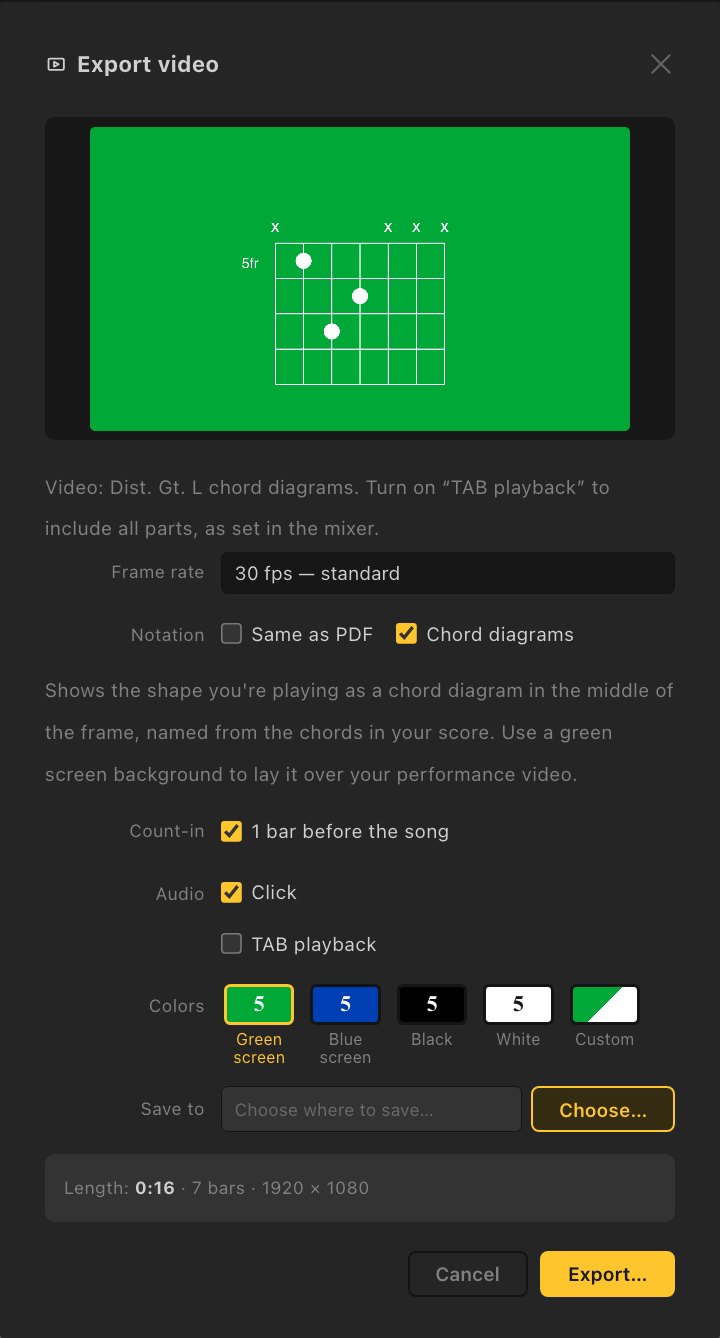
For guitar, I wanted a way to show exactly where your fingers are, so Linert can also export a video of the chord shape you're playing, drawn on a fretboard diagram. More on that in section 2.
01
Three ways to make a tab video
| Method | What you do | Effort | Good for |
|---|---|---|---|
| 1. Screen-record playback | Play the tab in your tab software and record the screen | Medium. You line it up by hand, and the recording can stutter | Getting something out with the software you already have |
| 2. Animate an image | Export the tab as a long image or PDF and move it with keyframes in your video editor | High. Both the motion and the timing are done by hand | Full control over the look |
| 3. Export a video | Export a ready-made tab video from your tab editor and lay it over your footage | Low | Doing it quickly, video after video |
Guitar Pro 8 doesn't list video export among its features (as of November 2026), so with Guitar Pro you're looking at method 1 or 2.
For method 3, there's notave, a free browser-based editor that can export vertical video and, as of October 29, 2026, no longer adds a watermark. MuseScore Studio, also free, exports a scrolling MP4 too. And there's Linert.
02
Pick a look that fits the song
Linert gives you three ways to show the music. Continuous and Page by page are the two Scrolling options; Chord diagrams is a Notation option:
| Look | What it does | Works best for |
|---|---|---|
| Continuous | The tab scrolls across the screen | Riffs, solos and single-note lines |
| Page by page | Shows 1 to 4 bars at a time while the playhead moves | Parts you want viewers to read closely, and rhythm playing |
| Chord diagrams | Shows the shape you're playing, big, in the middle of the frame | Chord-based songs and arpeggios |
The chord diagrams are drawn automatically from the notes in your tab. Muted strings get an ×, open strings an ○, and on slides and glisses the dots glide to the next fret. On single-note riffs, the dot moves note by note.
Tick both "Same as PDF" and "Chord diagrams" under Notation and you get two videos in one export.
03
Step by step with Linert
1. Get the tab in
Write your guitar part. Editing guitar parts takes a Highline license. There are also three ways to skip the blank page:
- Open a file from another app: Guitar Pro 7/8 (.gp), MusicXML or MIDI. For .gp5 and .gpx, re-save them as .gp in Guitar Pro first
- Draft it from a recording: Linert can draft tab from a guitar-only WAV. Chords get missed, so treat it as a starting point (more in Drafting guitar tab from a recording)
- Use the chord window: press C, type a chord name and pick a shape, and the tab and chord name go in together
2. Match the tempo to the song
The tab in the video moves at the tempo of your tab, so get the tempo and time signature to match the recording exactly.
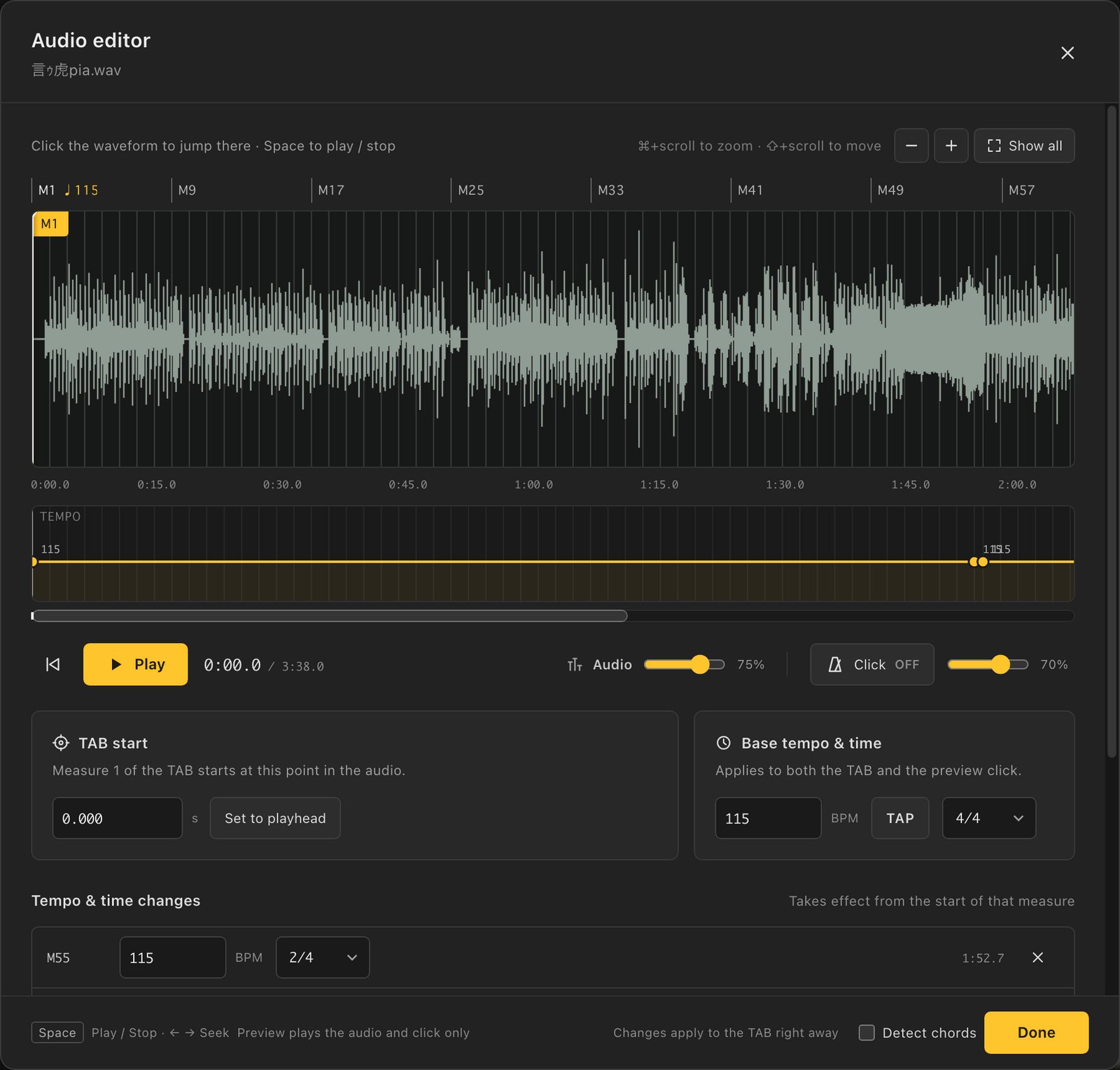
- Open the left panel with the gear button at the top of the notation palette, click Backing track → Load audio, choose the song's WAV and click Song / backing track. Dragging a WAV onto the song screen brings up the same choice
- In the audio editor, drag the M1 flag to where bar 1 of the tab starts, then click Done
- Play them together and listen for drift
If the tempo changes partway through, add it on the audio editor's tempo track, or click the bar number where it changes.
3. Choose the part and the audio
The video shows the tab of the part you have open. The audio includes every part, mixed the way your mixer is set. For songs with two guitars, switch parts and export each one. If you only want that part's audio, solo it with ⇧S before exporting.
4. Export
Choose Export → Movie in the top bar. The preview at the top of the window shows what you'll get.
| Setting | Options | What I recommend |
|---|---|---|
| Notation | Same as PDF / Chord diagrams | See the table in section 2 |
| Scrolling | Continuous / Page by page (1–4 bars) | See the table in section 2 |
| Bars on screen | 1 to 4 (when scrolling) | 1.5. Fewer bars means bigger and faster |
| Count-in | 1 bar before the song | On. It's a visual cue when lining things up |
| Playhead | Highlight the note / Highlight the bar / Hide the playhead | Your call |
| Audio | Click / Song / Guitar audio (the recording you transcribed) / TAB playback | Include "Song". That's what lets your editor sync it |
| Colors | Green screen / Blue screen / Black / White / Custom | See section 4 |
| Frame rate | 30 fps / 15 fps | 30 fps |
The video is 1920×1080. Choose where to save it and click Export, and leave the window open until it finishes. If you've set a loop range, you can export just that range, which is handy for a solo.
5. Lay it over your footage
- Put your playing footage on the lower track and the tab video above it
- Select both clips and sync them by audio. Premiere Pro, DaVinci Resolve, Final Cut Pro and Filmora all have a sync-by-waveform feature
- Once they're lined up, mute the tab video's audio
- Key out the background (section 4)
- Set the size and position
Syncing by audio only works if you put "Song" in the export's audio. If you didn't load the song, use the count-in click as your marker and line it up by hand.
04
Keying out the background
| Export color | How to remove it | Works best over |
|---|---|---|
| Green / blue screen | Chroma key | Any footage. Also the one to use for colored notation |
| Black (white notation) | Blend mode: Screen | Darker footage |
| White (black notation) | Blend mode: Multiply | Brighter footage |
Exports start out as black notation on white, so change the color before you export if you plan to use a chroma key.
If there's a green guitar or green lighting in your shot, a green screen will key those out too. Use a blue screen instead, or export in black or white and use a blend mode. Where to find these in each editor is in How to make a scrolling bass tab video.
05
For Shorts and Reels
Linert exports 1920×1080 only. For vertical videos, scale it down and run it across the top or bottom as a strip. Chord diagrams sit big in the middle of the frame, so you can also crop them and place them wherever you like.
06
Troubleshooting
- The tab slowly drifts away from my playing
- The tab's tempo doesn't match the song. Go back to step 2 and play them together.
- Auto sync doesn't line them up
- Check that your footage has the song in its audio. If you only recorded your guitar, the waveforms may not match. Use the count-in click as a marker and line it up by hand.
- The chord diagram doesn't match the shape I play
- The diagrams come from your tab, so fix the strings and frets in the tab. You can also select the notes, right-click and use Position to move them all at once.
- I can't choose Page by page
- Page by page is only available with the "Same as PDF" look.
- Exporting takes a long time
- Set the frame rate to 15 fps.
FAQ
FAQ
- Can I make bass tab videos too?
- Yes, the steps are the same. Bass parts use a Lowline license. See How to make a scrolling bass tab video.
- Can I show guitar and bass tab in the same video?
- No. The video shows the part you have open.
- Can I use a YouTube video or an MP3 as the backing track?
- Linert loads WAV only. Export MP3s and other formats to WAV from your DAW first.
- Can I try it before buying?
- Yes. In the browser demo you can pick guitar or bass, write up to 8 bars and hear it (video export is in the full version). You can also get a full refund within 30 days of purchase, no questions asked.
Make your first one
Linert is a tab & score editor for Mac and Windows. Guitar parts use a Highline license and bass parts a Lowline license, ¥2,980 each before tax (about US$20), one-time.
If you make a tab video, I'd love to see it.
More from this blog: Lowline is now Linert 2.0 · Drafting guitar tab from a recording