Blog
How to make a scrolling bass tab video for your playthroughs
Put moving tab under your playing, synced by audio instead of by hand
- Three ways to make a tab video, and how much work each one takes
- How to line the tab up with your footage automatically
- How to key out the background (green, black or white) in your editor
You've seen them in bass covers and playthroughs: the player on top, the tab scrolling along the bottom in time with the song. It's one of the most useful things you can add to a bass video, because viewers can learn the part while they watch.
Making one comes down to three steps:
- Write the tab
- Turn it into a video of the tab scrolling
- Lay that video over your playing footage
Step 2 is where the time goes. How you handle it decides whether a video takes you a few minutes or a quarter of an hour.
Full disclosure: I'm Naoto Yamada, bassist in the Japanese band été, and I built the tab editor I use in this post, Lowline. But the first and last parts of this guide (the three methods and keying) work no matter what software you use.
01
Three ways to make a tab video
| Method | What you do | Effort | Good for |
|---|---|---|---|
| 1. Screen-record playback | Play the tab in your tab software and record the screen | Medium. You line it up by hand, and the recording can stutter | Getting something out with the software you already have |
| 2. Animate an image | Export the tab as one long image or PDF and move it with keyframes in your video editor | High. Both the scrolling and the timing are done by hand | Full control over the look |
| 3. Export a scrolling video | Export a ready-made tab video from your tab editor and lay it over your footage | Low | Doing it quickly, video after video |
Method 2 is the one you'll see recommended most on forums. It works, but if the song changes tempo, you end up adding sync points by hand.
Guitar Pro 8, the most common tab software, doesn't list video export among its features (as of October 2026), so with Guitar Pro you're looking at method 1 or 2.
It used to take me 15 minutes a video
Before Lowline, I did it the first two ways: exporting a long strip of tab as a PDF from the notation app Flat and animating it with keyframes, or screen-recording the playback and lining it up with my footage. Either way, it took me about 15 minutes per video, for two reasons:
- The timing had to be fixed by hand. Neither a PDF nor a screen recording has the song's audio in it, so the video editor's "sync by audio" feature has nothing to work with
- Screen recordings stutter. The tab doesn't glide across the screen; it jumps
With Lowline, I load the song's audio, and the exported tab video has the song in it. The video editor then lines it up with my footage on its own. The scrolling is smooth, and I can pick whatever colors I want.
To see how big the difference is, I put both side by side on the same bars of the same song.
I then measured how far the tab moves from one frame to the next, across 24 seconds of each video.
| Movement per frame | Frames where it froze | |
|---|---|---|
| Old way (screen recording) | Anywhere from 0 to 71 px | 1 in every 7 |
| Lowline's export | The same 12 px, every frame | None |
The screen recording kept stopping and lurching forward. That's the stutter you notice when you watch it.
02
Step by step with Lowline
1. Get the tab in
To write tab, click a spot on the grid, pick a note length, and type the fret number. Press Space to play it back and fix it as you listen. There are also two ways to skip the blank page:
- Open a file from another app. Guitar Pro 7/8 files (.gp), MusicXML and MIDI open with Open in the toolbar
- Draft it from your own recording. Load a clean, bass-only WAV and Lowline drafts the tab. It's a draft, so you'll still fix it by ear (more on that in Bass tab from audio)
The user guide covers writing tab in detail.
2. Match the tempo to the song
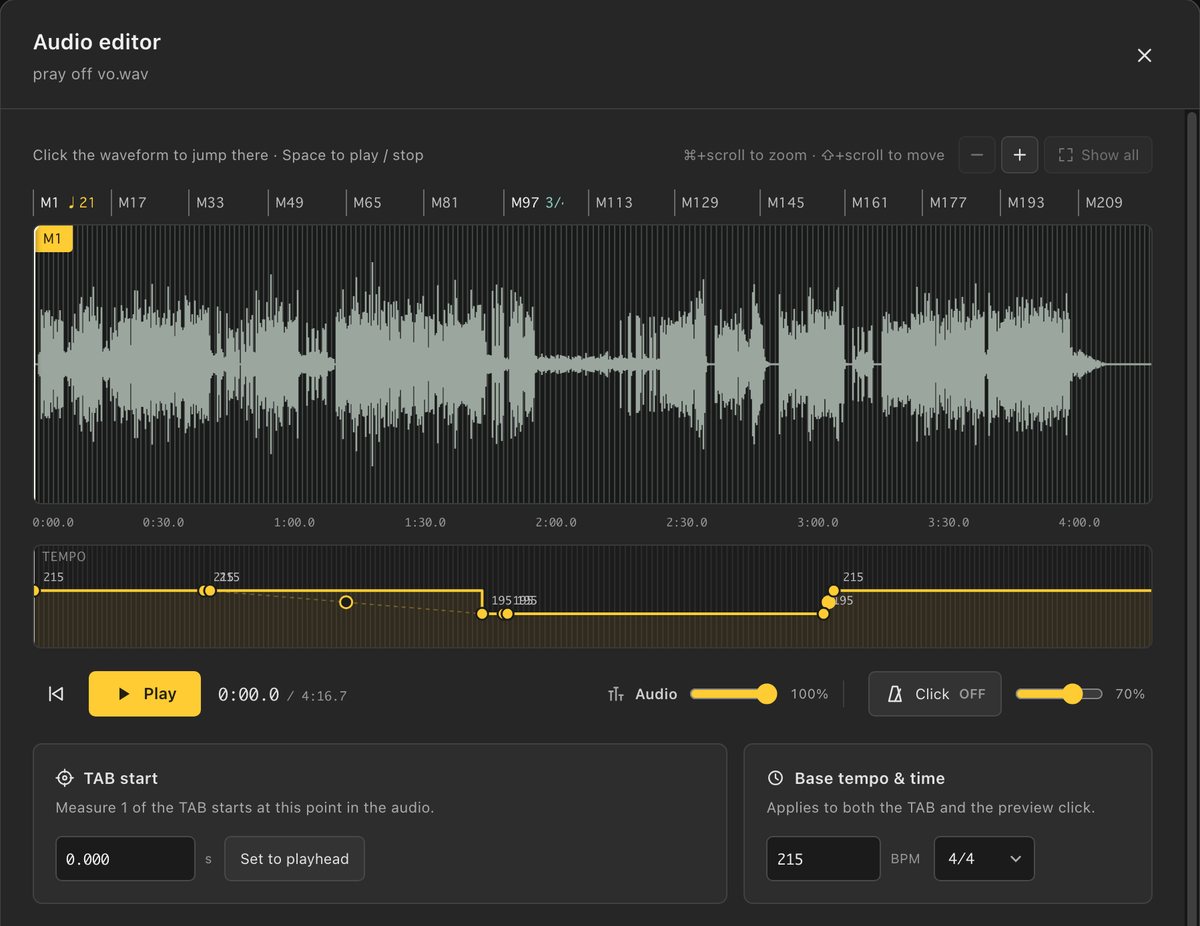
The tab in the video scrolls at the tempo of your tab. So before anything else, get the tempo and time signature to match the recording exactly. If you load the song as a WAV, you can play the tab and the song together and hear whether they drift.
- Under Backing track in the sidebar, click Load audio and pick the song's WAV (or drag it onto the window), then choose Song / backing track
- Click Open audio editor and set TAB start: where bar 1 of the tab starts in the song
- Play it back and listen for drift
If the song changes tempo or time signature partway through, add the change in the audio editor's tempo track, or click the bar number where it changes and set the new value from there.
3. Export → Movie
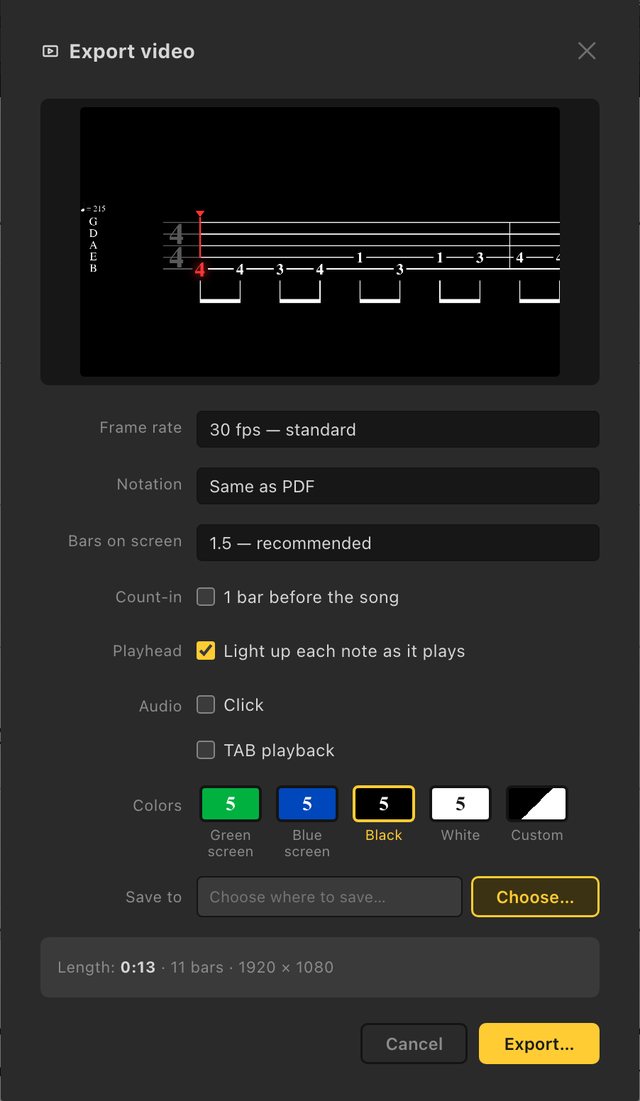
Choose Export → Movie in the toolbar. The settings window shows a preview frame at the top, so you can see what you'll get before you export.
| Setting | Options | What I recommend |
|---|---|---|
| Notation | Same as PDF / Same as the editor | “Same as PDF” adds stems and beams under the fret numbers, so the rhythm reads at a glance. “Same as the editor” can show a rhythm staff under the tab |
| Bars on screen | 1, 1.5, 2, 3 or 4 | 1.5 (recommended). Fewer bars means bigger and faster-scrolling |
| Count-in | 1 bar before the song | On. It gives you a visual cue when lining things up |
| Playhead | Light up each note as it plays | Your call |
| Audio | Click / Song / Bass audio / TAB playback | Include “Song”. This is what lets your editor sync the video automatically. (It only appears once you've loaded the song) |
| Colors | Green screen / Blue screen / Black / White / Custom | See Keying out the background |
| Frame rate | 30 fps (standard) / 15 fps (light) | 30 fps |
The video is 1920×1080. Choose where to save it and click Export, and you get an MP4. Leave the export window open until it finishes.
4. Lay it over your footage and sync by audio
- Put your playing footage on the lower track and the tab video on the track above it
- Select both clips and run your editor's audio sync (see the table below). It lines them up by matching the waveforms
- Once they're lined up, mute the tab video's audio
- Key out the background (next section)
- Set the size and position. Along the bottom of the frame is the usual spot
| Editor | Sync by audio |
|---|---|
| Premiere Pro | Select both clips → right-click → Synchronize → Audio |
| DaVinci Resolve | Select both clips → right-click → Auto Align Clips → Based on Waveform |
| Final Cut Pro | Select both clips in the browser → Clip → Synchronize Clips |
| Filmora | Select both clips → right-click → Auto Synchronization (this is the one I use) |
Auto sync only works if you put the song in the export's audio. If you didn't load the song, use the count-in click as your marker and line it up with the first beat by hand.
The export is 16:9 only. For Shorts, Reels and TikTok, scale it down and run it across your vertical video as a strip.
03
Two ways to key out the background
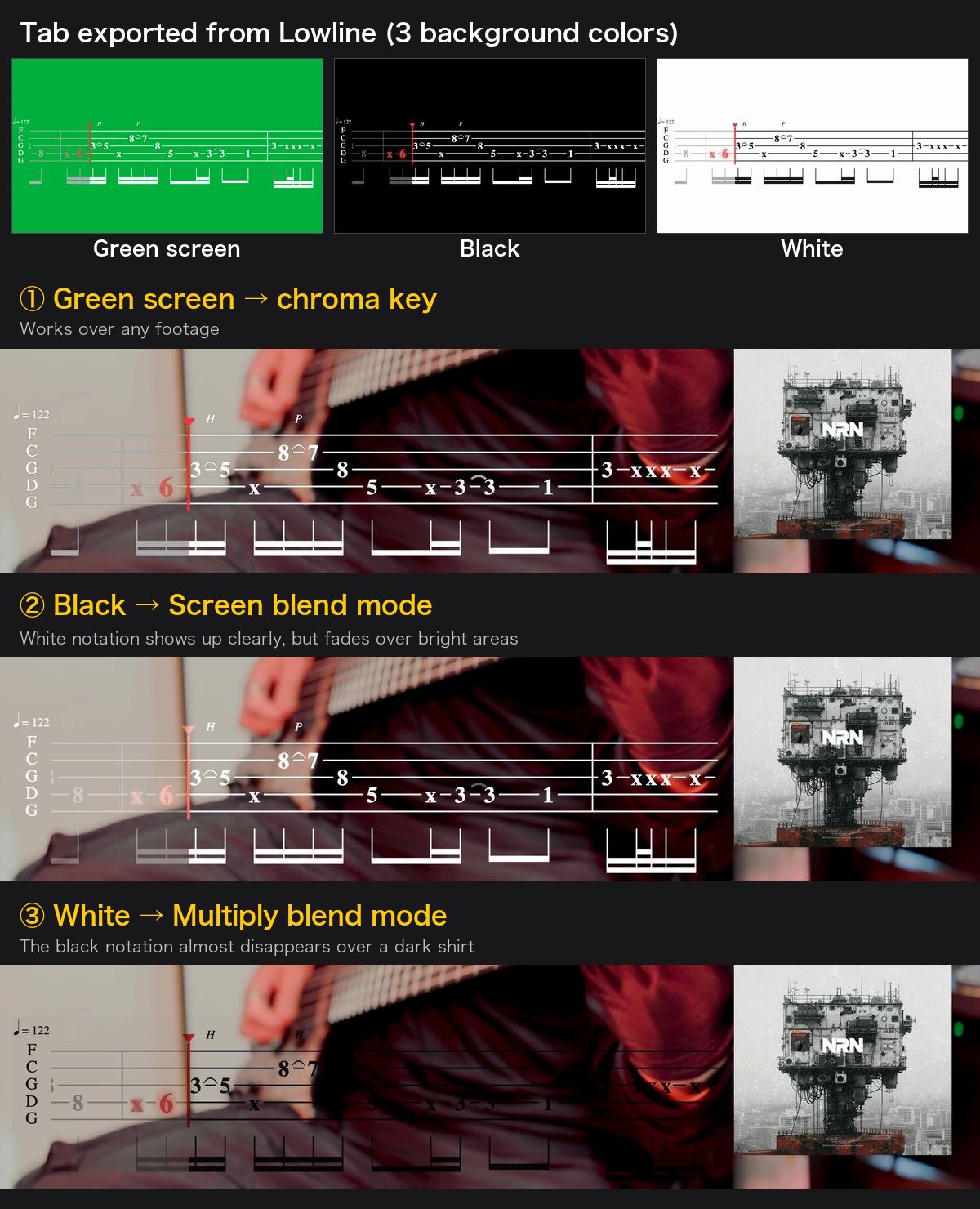
You can remove the background with a chroma key, or with a blend mode. A blend mode is just one setting, with no keyer to tweak.
| Export color | How to remove it | Works best over |
|---|---|---|
| Green / blue screen | Chroma key | Any footage. Also the one to use if you want colored notation |
| Black (white notation) | Blend mode: Screen | Darker footage (a dim stage, a dark wall) |
| White (black notation) | Blend mode: Multiply | Brighter footage (a room with white walls) |
- Screen makes black see-through and keeps what's bright
- Multiply makes white see-through and keeps what's dark
Where to find it
| Editor | Chroma key | Blend mode |
|---|---|---|
| Premiere Pro | The Ultra Key effect | Effect Controls → Opacity → Blend Mode |
| DaVinci Resolve | The 3D Keyer effect | Inspector → Composite → Composite Mode |
| Final Cut Pro | The Keyer effect | Video inspector → Compositing → Blend Mode |
| Filmora | Chroma Key in the clip's video settings | Video → Basic → Compositing → Blend Mode |
Two things to watch out for
- Match the color to your footage. White notation gets lost over bright footage, and black notation over dark footage
- Colored notation doesn't blend well. Only pure black or pure white turns see-through, so colored notation mixes with the picture underneath and fades. If you want colored notation, export with a green or blue screen and use a chroma key
04
Troubleshooting
- The tab slowly drifts away from my playing
- The tab's tempo doesn't match the song. Go back to step 2 and play the tab along with the song. If the song changes tempo, add a tempo change at the bar where it happens.
- Auto sync doesn't line them up
- Check that your footage has the song in its audio. If you only recorded your bass, the waveforms may not match the song. In that case, use the count-in click as a marker and line it up by hand.
- The tab is too small, or scrolls too fast
- Change Bars on screen. 1 is big and fast, 4 is small and slow.
- The green won't fully disappear, or green in my shot disappears too
- Export with a blue screen instead, or export in black or white and use a blend mode.
- Exporting takes a long time
- Set the frame rate to 15 fps (light).
FAQ
FAQ
- Can I make tab from a YouTube video?
- Lowline loads WAV files, and it can't pull the bass out of a full mix. If you have a recording of just the bass (your own, or a bass stem), it can draft the tab from that.
- Can I export a vertical (9:16) video?
- Exports are 1920×1080 only. For vertical videos, scale the tab down in your editor and use it as a strip.
- Does it run on Windows?
- Yes. Lowline runs on Mac and Windows, and one license covers two computers (you can mix Mac and Windows).
- Can I use it for guitar tab?
- No, Lowline is bass only. It handles 4- to 7-string basses.
Let me brag a little
The playback in Lowline uses recordings of a real bass, fingerstyle and slap, and you can switch between a Clean and a distorted tone. Writing heavy music and hearing it back in a polite clean tone is just depressing.
Because you can export the song's audio along with the tab, the video also works for sending a new bassline to your bandmates: they hear it in the song and read it at the same time.
What it can't do
- Bass only (no guitar or other instruments)
- Audio import is WAV only
- Video export is 1920×1080 (landscape) only
Lowline is a tab editor for Mac and Windows, made only for bass. It's ¥2,980 (before tax, about US$20), one-time. In the browser demo you can write up to 16 bars of tab, hear it with the real tones, and try the mixer. Saving and exporting (including video) are in the full version.
If you make a tab video, I'd love to see it.